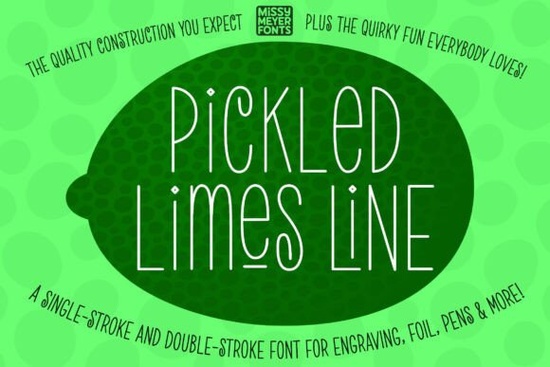
If you work with drawing-based crafting tools, you already know that standard typography rarely translates well to single-stroke machines. That is exactly why the Pickled Limes Line Font was built. Instead of relying on filled letterforms that force your hardware to trace heavy outlines, this typeface uses clean, continuous paths designed specifically for pens, engravers, and scoring tools. The tall, narrow handwritten style brings a relaxed feel to personalized gifts, jewelry tags, and custom cutting boards without slowing down your daily workflow.
What makes a single-line font different from regular typography?
Most desktop fonts are designed for ink coverage. When you send a standard typeface to a plotter, the software tries to fill the shape by drawing overlapping passes. This wastes material and dulls your nibs. A true single-stroke typeface removes that problem entirely. Each character follows one continuous path, so your tool draws the letter exactly as you see it. This package also includes both single-stroke and double-stroke variations. The double-stroke version helps when your software requires closed paths for foil applications, while the single-stroke files keep processing lightweight for quick pen plots.
Which machines and tools work best with this style?
This typeface was engineered for hardware that relies on a physical tip rather than a printed ink layer. It pairs smoothly with:
- Sketch pens and infusible ink pens for cardstock and sublimation blanks
- Foil quills for metallic accents on invitations or retail packaging
- Engraving bits for metal tags, acrylic keychains, and wooden boards
- Glowforge scoring tools to create crisp fold lines on paper crafts
- Any stylus or nib that moves in a single continuous motion
Because the letterforms are tall and slightly condensed, they fit neatly into narrow spaces like bracelet bands and slim product labels. The handwritten rhythm keeps the design feeling personal, which works well for small-batch makers and print-on-demand sellers who want a handcrafted look without manual labor.
How do I handle software compatibility issues?
Drawing fonts sometimes behave differently depending on your design platform. Brother CanvasWorkspace users, for example, may notice that the typeable font does not display correctly on the canvas. When that happens, simply switch to the included SVG file. It contains the complete character set as ready-to-use paths, so you can bypass the typing limitation entirely. If you are working in Cricut Design Space, Silhouette Studio, or Inkscape, make sure you select the draw or score operation before sending the file. Leaving the operation set to cut will force the software to trace outer edges, which defeats the purpose of a single-stroke design.
When should I choose this over other display fonts?
Not every project needs a continuous-line typeface, but hard surface personalization benefits greatly from the efficiency it provides. A single-path font reduces heat buildup and prevents tool chatter on metal or wood. When you want something with a different mood, you might explore a heavier brush style through our collection of bold hand-painted typefaces, or try a structured sans serif like the options found in our modern display font library. Seasonal projects also dictate font choices. A spooky autumn release might call for Midnight Creepy, while a retro café menu could benefit from the layered charm of Fresco Vintage Duo. For everyday personalization, though, the relaxed vertical rhythm here strikes a practical balance. You can also browse similar single-line display fonts if you need alternate weights, or check out Racken and Raw Hand Paint Bold when your layout requires heavier visual contrast.
What should I check before sending my file to the machine?
Running a quick pre-flight check saves material and prevents misaligned draws. Keep this short list handy:
- Verify that your software operation is set to draw, engrave, or score, not cut.
- Test a single word on scrap material to check line weight and tool pressure.
- Confirm you are using the correct stroke version for your machine’s path requirements.
- Resize proportionally to avoid distorting the narrow letterforms.
- If your canvas shows broken characters, swap to the provided SVG file and regroup the paths.
Single-line typography removes the guesswork from machine drawing, but it only performs well when paired with the right settings. Start with a small test batch, adjust your tool pressure based on surface texture, and keep your pen tip clean between runs. Once your workflow is dialed in, you can scale production confidently and maintain consistent quality across every order.
Learn More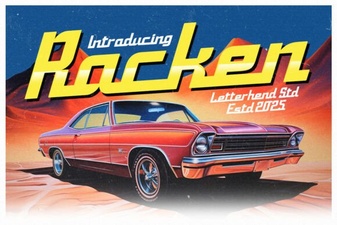 Discover the Racken Font: Design & Project Ideas
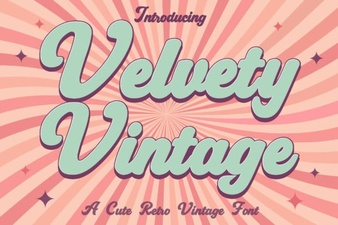 Craft Your Vintage Designs with Velvety Font
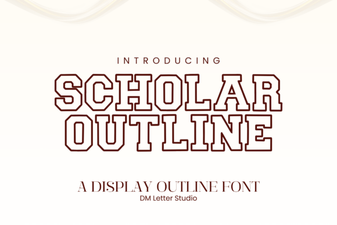 Scholar Font Design: Creative Outline Blocks
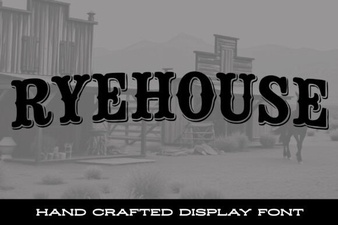 A Modern Font for Creative Web Design
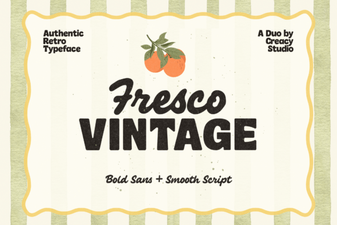 Fresco Vintage Duo Font for Creative Design Projects
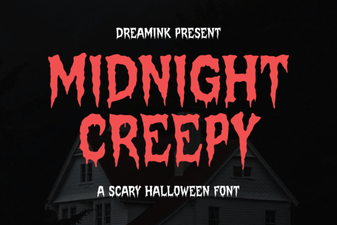 Midnight Creepy Fonts for Designers and Storytellers